Router Setup
OPNsense OpenVPN Setup Guide
Add a Certificate
-
In your router’s webUI, navigate to
System>Trust>Authoritiesand click on the+button -
Give it any name, i.e. “IVPN CA”, select
Import an existing Certificate Authority, then copy and paste the contents of our ca.crt file into theCertificate Datafield -
Click
Save.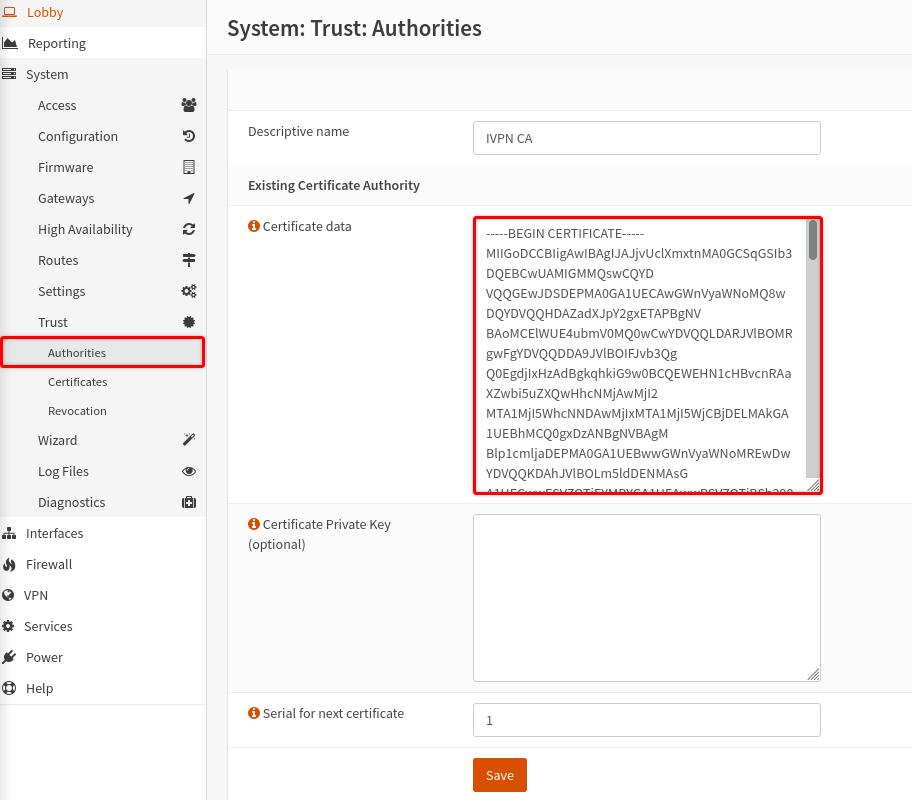
Configure an OpenVPN Client
-
Choose an OpenVPN server from our Server Status page and make note of its hostname (this guide uses Ukranian server as an example - ua1.gw.ivpn.net)
-
Navigate to
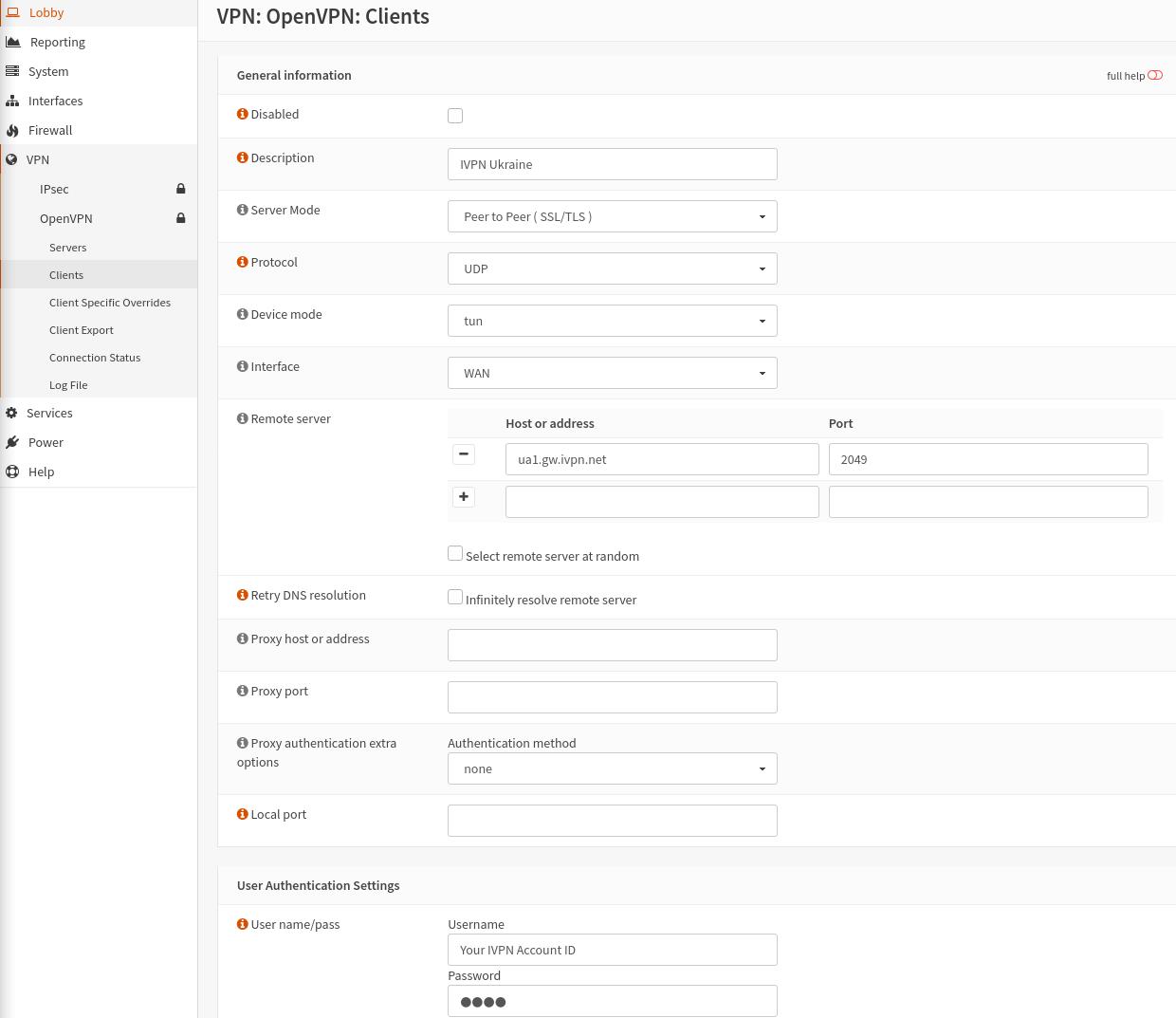
VPN>OpenVPN>Clients, click on the+button and enter the following configuration:- Disabled - Unchecked
- Description - Give it any name, i.e. IVPN Ukraine
- Server Mode - Peer to Peer (SSL/TLS)
- Protocol - UDP or TCP
- Device mode - tun
- Interface - WAN
- Remote server - IVPN’s server hostname, i.e. ua1.gw.ivpn.net
- Port - 2049 (or 53, 80, 443, 1194, 2050 for UDP and 80, 443, 1443 for TCP. All ports are equally secure)
- Username - Your IVPN account ID (i-XXXX-XXXX-XXXX or ivpnXXXXXXXX case-sensitive)
- Password - any string, i.e. ivpn
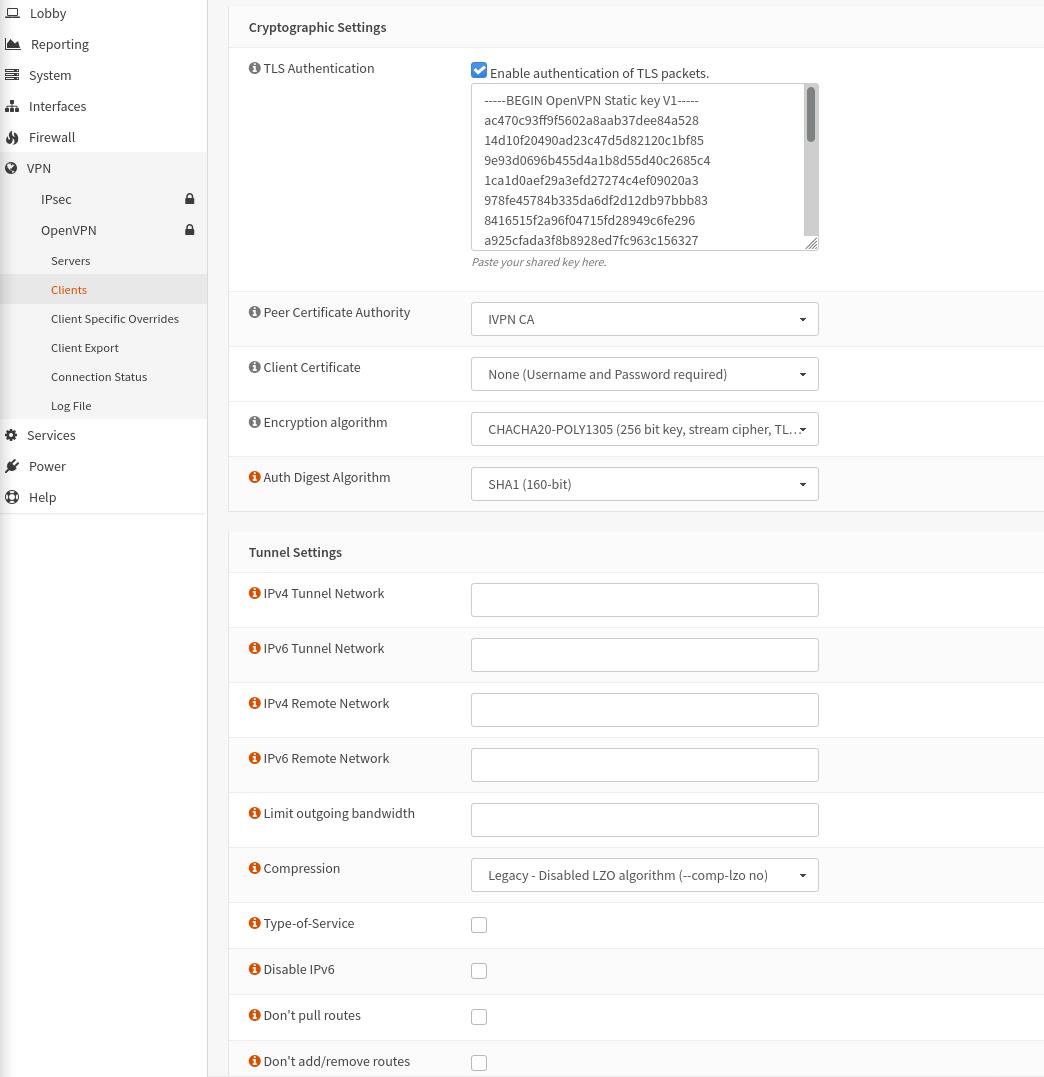
- TLS Authentication - check the
Enable authentication of TLS packetsoption then copy and paste the contents of our ta.key file - Peer Certificate Authority - IVPN CA
- Client Certificate - None (Username and Password required)
- Encryption algorithm - CHACHA20-POLY1305 (256 bit key) (AES-256-GCM & AES-256-CBC are also supported)
- Auth Digest Algorithm - SHA1 (160bit)
- Compression - Legacy - Disabled LZO algorithm (–comp-lzo no)
-
Click
Save.
Create an Interface
-
Navigate to
Interfaces>Assignments -
Look for the interface with
ovpnc1name, give it any description, i.e. “IVPNUkraine”, then click on the+button andSave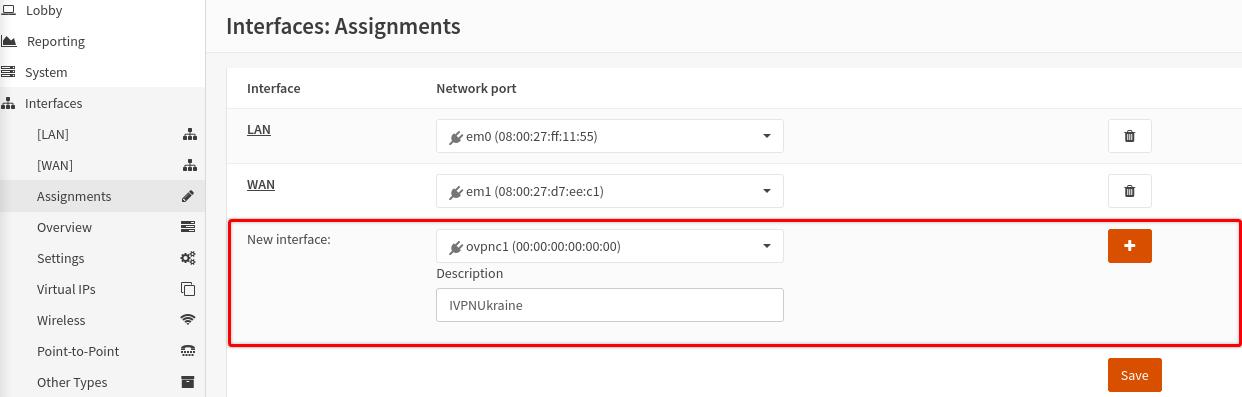
-
Click on the newly added interface name, have the
Enable Interfaceoption checked andSavethe changes.
Configure Firewall
-
Navigate to
Firewall>NAT>Outbound, selectManual outbound NAT rule generationand clickSave -
Click on the
+button to add a new rule and fill in the following configuration:- Disabled - Unchecked
- Interface - select the created earlier interface, i.e. IVPNUkraine
- Source Address - LAN net
- Translation / target - Interface address
-
Click
SaveandApply Changes.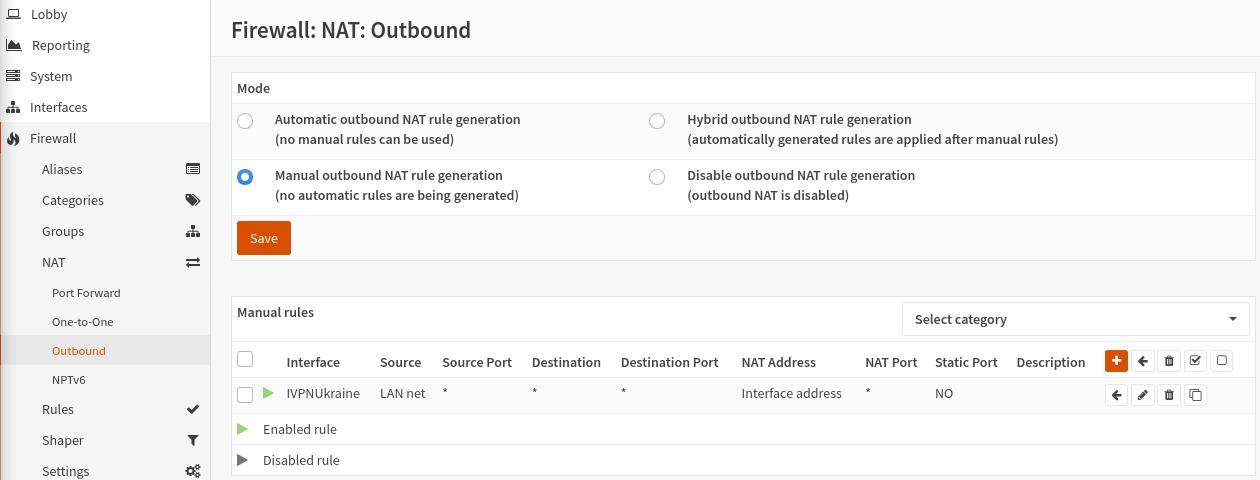
DNS
-
Navigate to
Services>DHCPv4>[LAN] -
In the
DNS serversfield, specify one of the following DNS servers:- 10.0.254.1 = regular DNS with no blocking
- 10.0.254.2 = standard AntiTracker to block advertising and malware domains
- 10.0.254.3 = AntiTracker Hardcore Mode to also block Google and Facebook domains
-
Click
Save.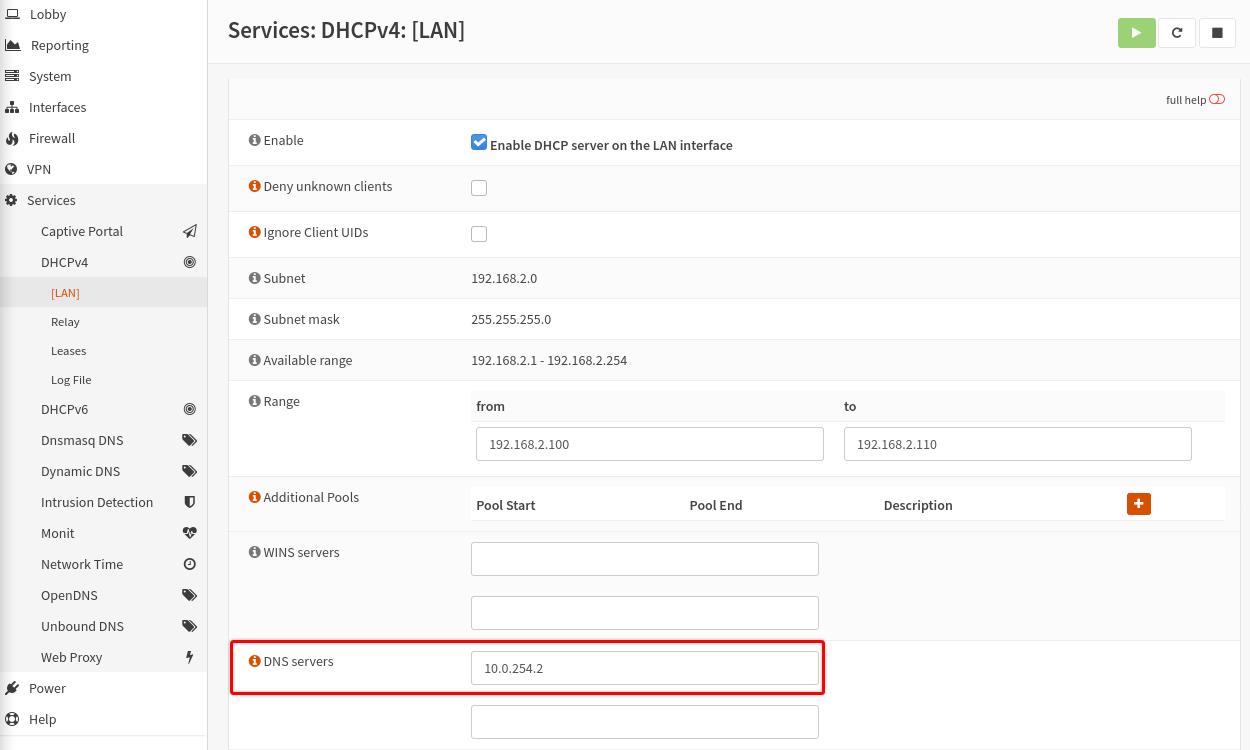
Final Steps
-
Restart your router device and check the status of the OpenVPN client in the
VPN-OpenVPN-Connection Statusarea.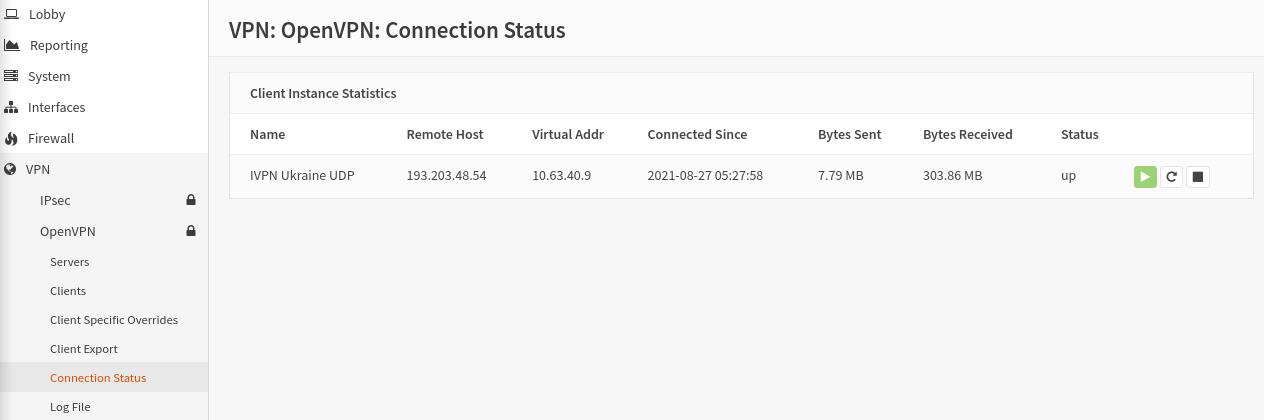
-
Check the conenction status and the assigned public IP address on our website and run a leak test at https://www.dnsleaktest.com from one of the devices connected to your OPNsense router.

Please note: If you plan to use a Multi-hop setup please see this guide and replace the port number in Step 2 of Configure an OpenVPN Client section with the chosen Exit-hop server Multi-hop port.